

YAKA - Yet another Konfig app
Yaka bridges the gap between the Linn Konfig application (now retired) and the cloud based Manage Systems.
The key features of Yaka are:
- Linn Device discovery on local networks
- View core configuration information for each discovered Linn device including
- Device serial number
- Selekt module and DAC population with serial numbers
- Exakt connected devices and serial numbers (Speakers, ExaktBoxes, Phono stages)
- Access Manage Systems directly from each of the discovered Linn devices
- Reboot a Linn device
- Update the firmware on a Linn device
- Login to your Linn account
- List/Manage all devices associated with your Linn account (Cloud)
- Associate a device with your Linn account
- Disassociate a device on the local network from any Linn account
- Recover a Linn device - wiping settings
- Recover a Linn device - preserving settings
- It does not provide any settings configuration - this is all done in Manage Systems
- Runs on graphical desktop operating systems: Windows, MacOS (Apple Silicon), MacOS (Intel), Linux (deb)
Yaka is a tool designed primarily for Linn Dealers to support their customers, but may be used by anyone.
Typically used either on site during installation or remotely for support (using TeamViewer or similar).
Local
The Local tab displays all the Linn DS/DSMs found on the selected network.
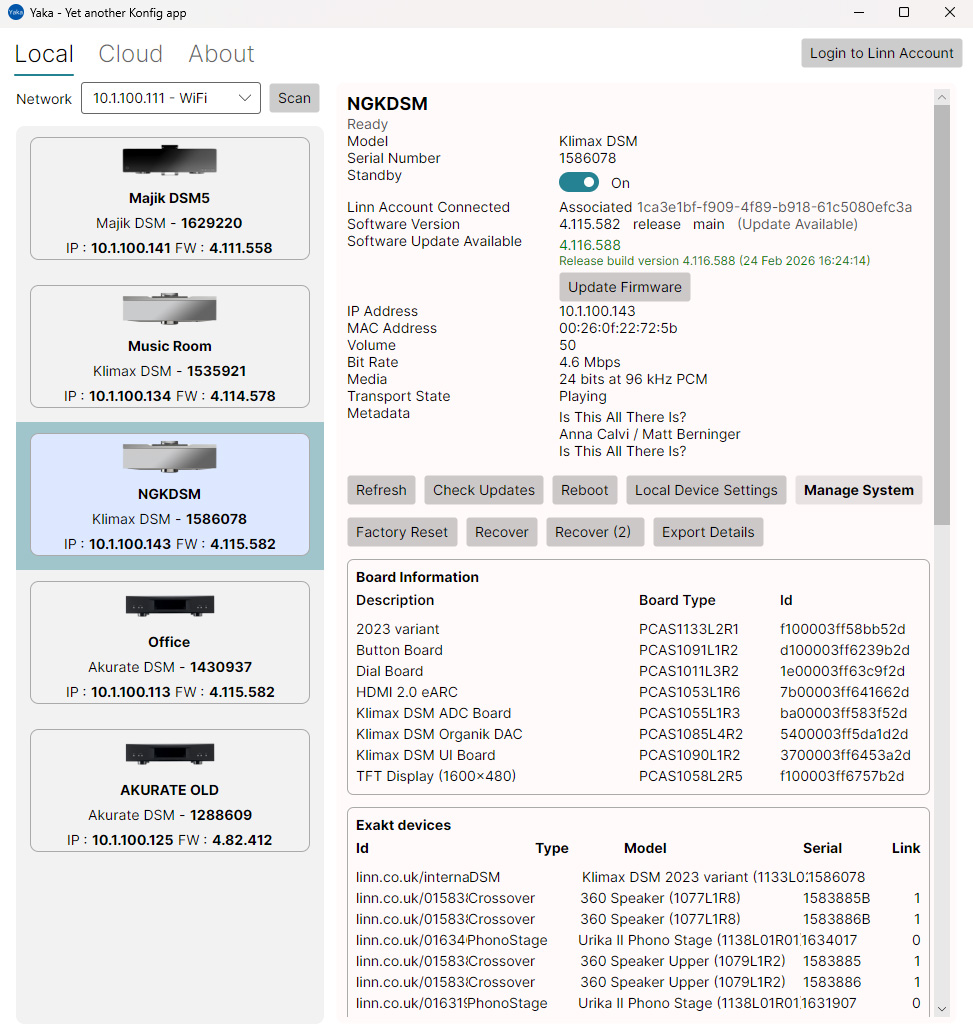
When Logged into your Linn account (button top right) you will see options to associate/disassociate the selected Linn device.
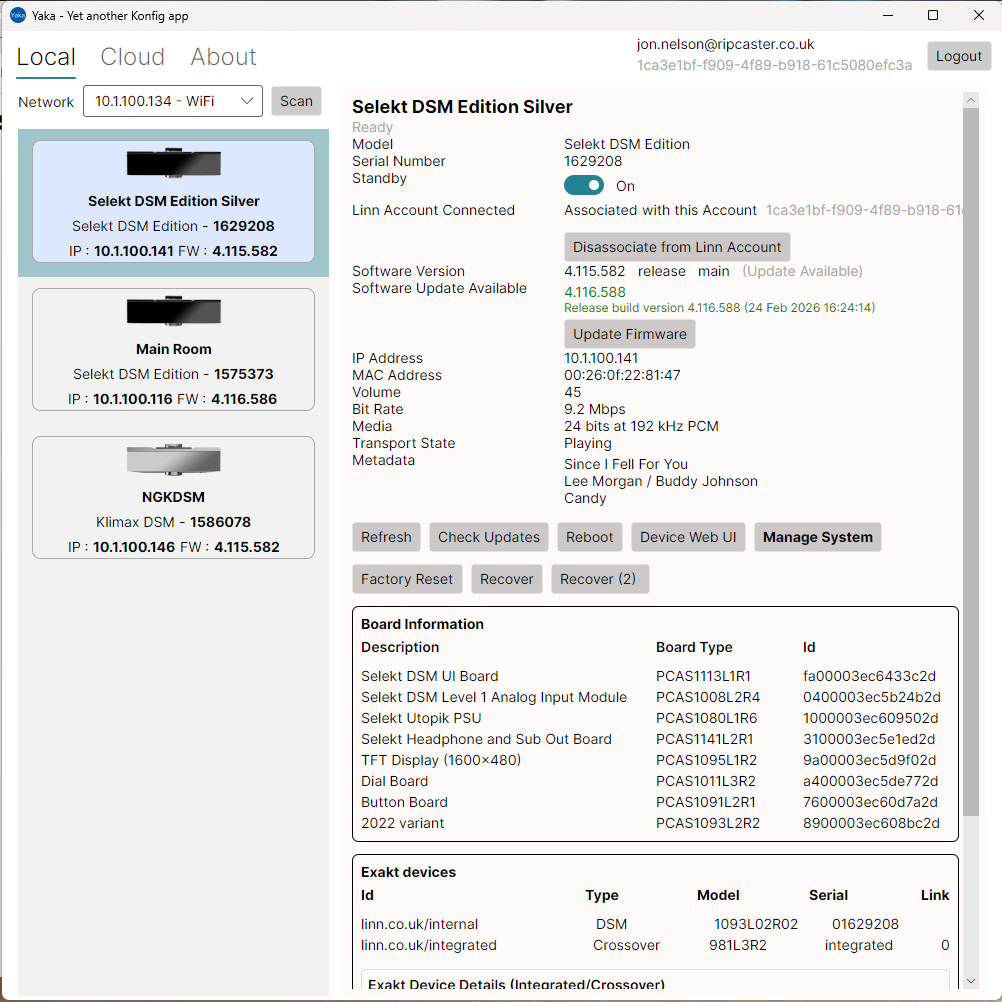
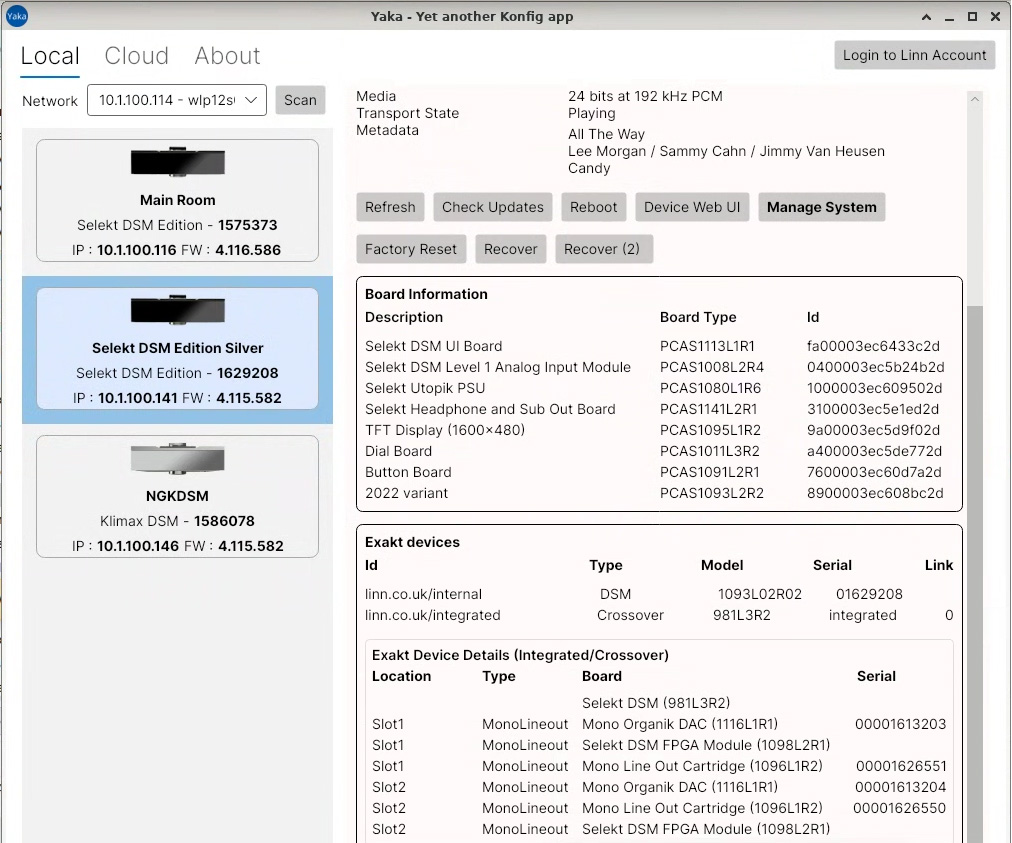
The two images above are from the Windows version. The image below is from the Linux version. On Selekt devices the modules and DACs are displayed.
Cloud
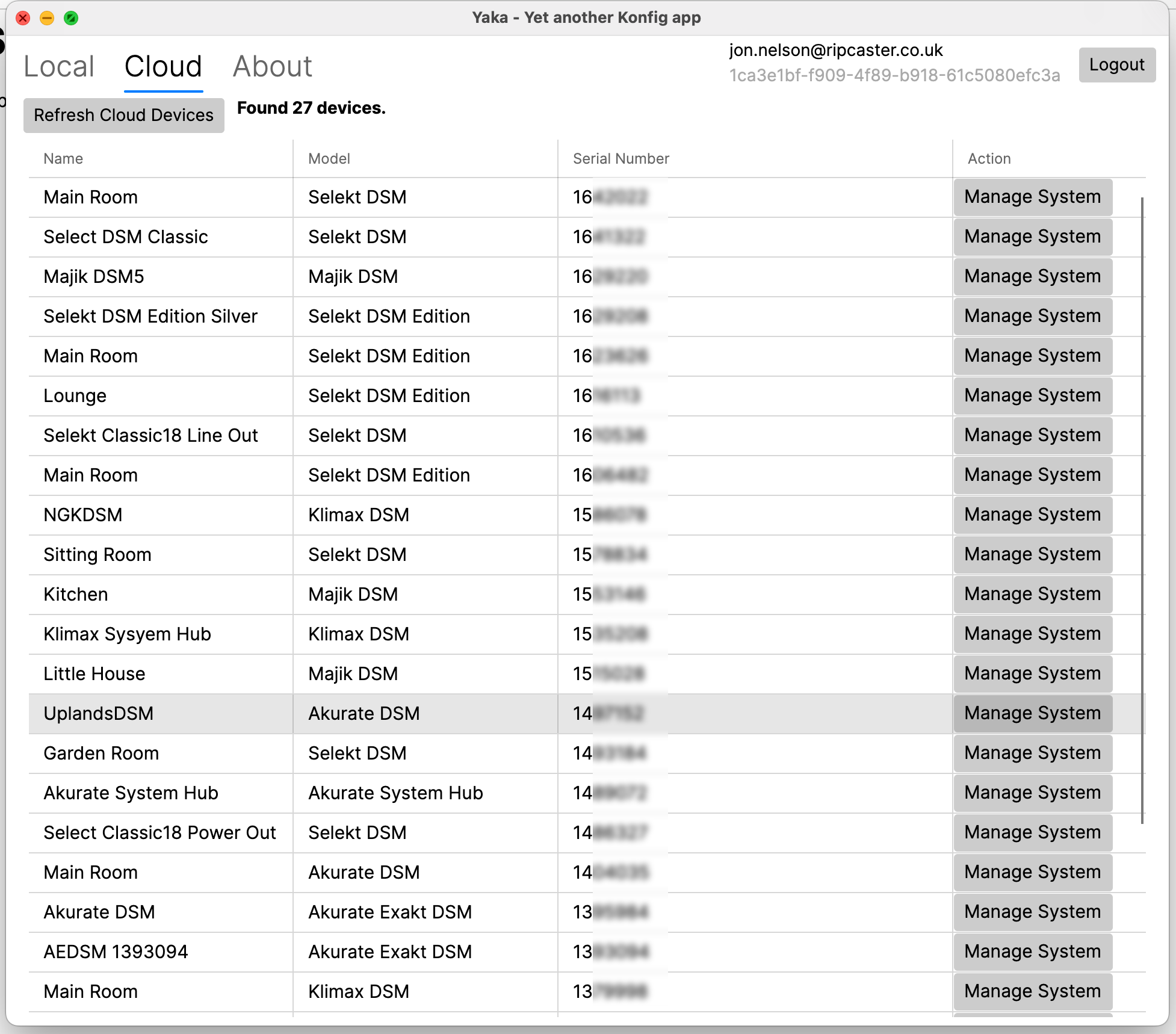
The Cloud tab shows all the devices associated (excluding devices shared) with the logged in Linn Account. The "Manage Systems" button take you straight to the relevant Manage Systems page for the selected device.
How Do I Get It?
Yaka is free.
Please let us know how you are using YAKA and what works/what breaks/what could be improved.
You can receive a download link here https://ripcaster.co.uk/download/request
Installation
Mac OS
- Download the App bundle corresponding to your processor (Latest arm64 / Apple Silicon / M series)
- Move the App bundle to the Applications folder.
- Allow access to Local Area Network when prompted
- Allow access to the Documents folder (it uses this to write logs and configuration)
- Yaka configures the necessary ports and firewall for eventing (port 54321)
- Requires Mac OS 12 or later
Windows:
- Download and run the installer.
- Ensure the Local Area networks are set to Private
- The Yaka installer is not signed - so you will need to bypass Windows SmartScreen to complete the install.
- The Yaka Windows installer configures the necessary ports and firewall for eventing (port 54321)
- Tested on Windows 10 & 11
Linux
- Download the deb package e.g. yaka_1.0.9_amd64.deb
- Use the following command to install sudo apt install yaka_<verison>_amd64.deb e.g. in this example:
-
sudo apt install yaka_1.0.9_amd64.deb
Cross Platform Desktop
Yaka is written in C# and uses .Net and Avalonia to provide the same codebase across all platforms: Windows, MacOS, Linux.
Thank You
"Thank you" to the Linn software team for providing technical information for this project.
Jon Nelson March 2026